Reviewing Submissions
When an inspector submits an inspection (or a citizen submits an application that needs a decision), it appears in your Approvals queue for review.
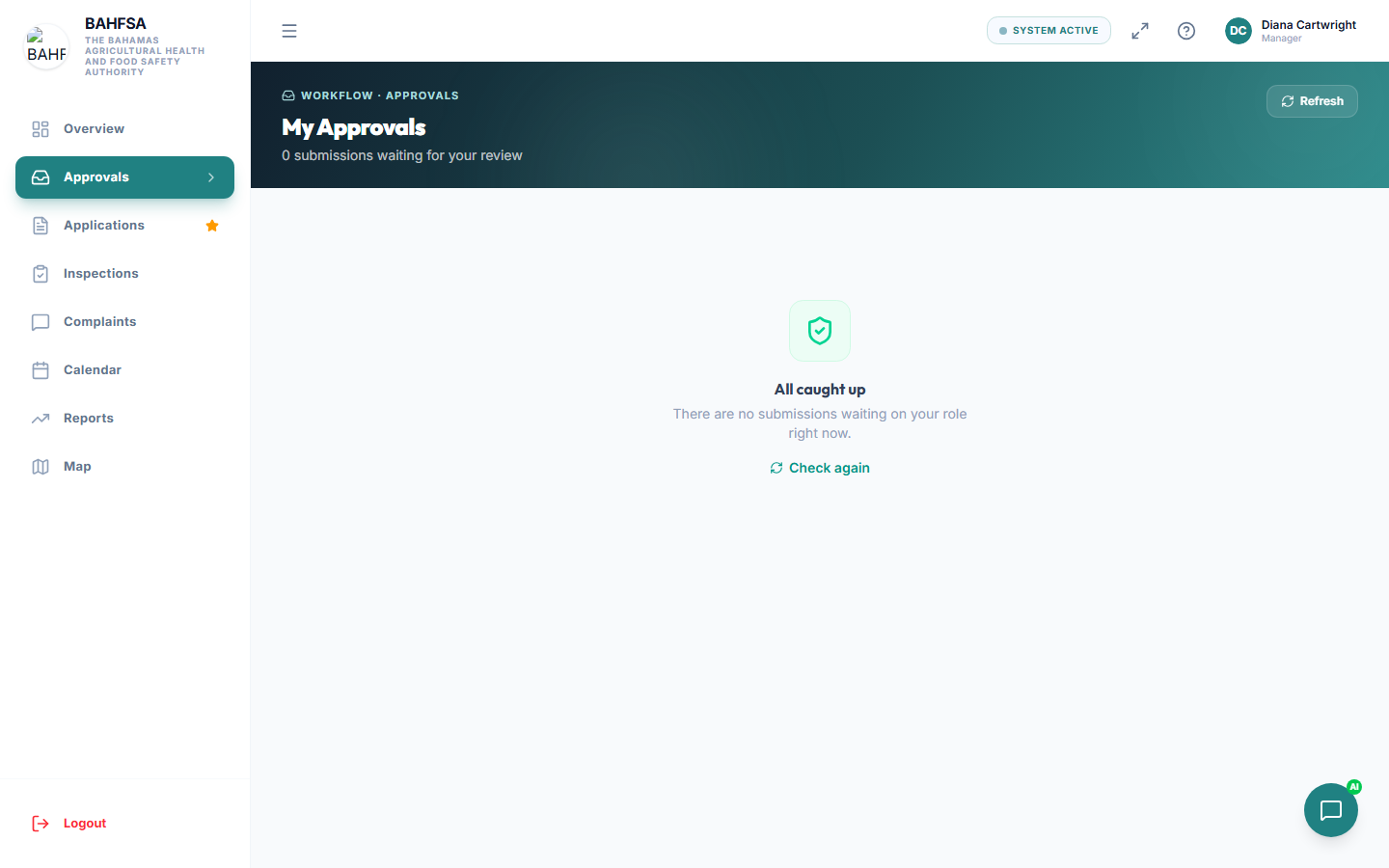 The Approvals queue shows everything waiting on your decision.
Open the queue
In the menu, select Approvals. You'll see everything waiting on your decision at this stage. Each entry shows the business, type, and when it was submitted.
Review a submission
Select an item to open it. You'll be able to see:
- The application or form details the citizen provided.
- The inspector's findings and recommendations.
- The completed checklist, including the score and grade.
- Any photos and documents attached.
- A history of everything that's happened so far.
Take your time — everything you need to decide is on this screen.
Make a decision
Depending on the case, you'll have options such as:
| Decision | What it does |
|---|---|
| Approve | The case passes. If the workflow issues certificates, one is generated automatically. |
| Reject | The case does not pass. |
| Not compliant | Issues were found; a re-inspection is typically created so it can be put right. |
| Suspend | Used for repeated failures — the business is suspended. |
Some decisions ask you to add remarks explaining your reasoning, and you may add your signature. Add these where prompted, then confirm.
After you decide
- The citizen and relevant staff are notified automatically.
- If approved, the certificate becomes available to the citizen.
- The action is recorded in the case history for the audit trail.
:::tip Stay on top of the queue Check your Approvals regularly. The dashboard also highlights items waiting on you. :::