Assigning Inspectors
When an inspection needs doing, you assign it to an inspector and set a date and time slot.
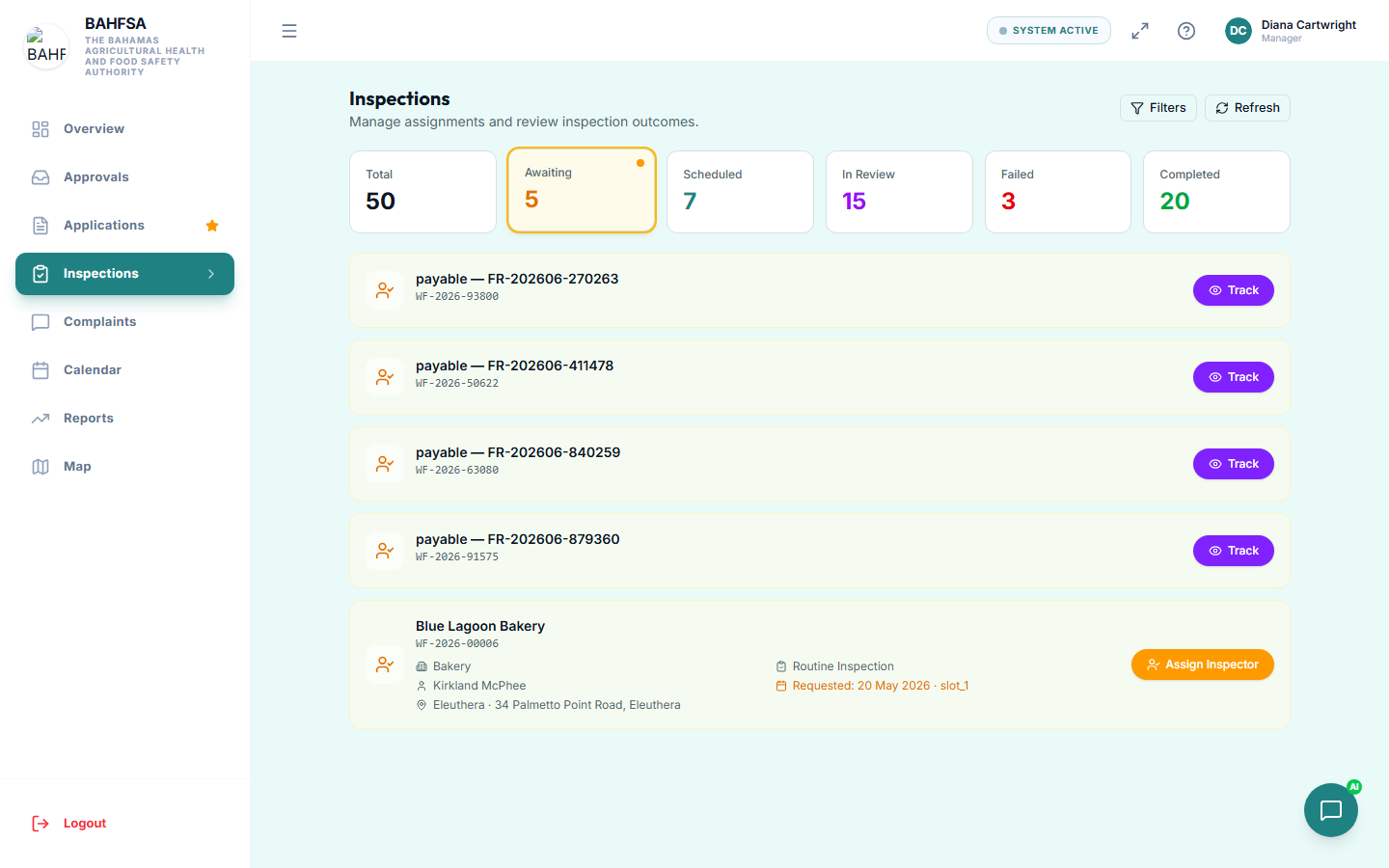 Open an inspection from here to assign an inspector and schedule it.
Assign an inspection
- Open the inspection that needs assigning (from Inspections or your queue).
- Select Assign.
- Choose an inspector.
- Pick a date and time slot.
- Confirm.
The inspection now appears in that inspector's Tasks and Today's Route, and they're notified.
Checking availability
When assigning, you can see an inspector's schedule so you don't double-book them. Pick a slot that's free and sensible for the site's location.
The live inspector map
To coordinate during the day, open the Map. It shows where your inspectors currently are, helping you:
- Confirm an inspector has arrived on site.
- See who's nearby for an urgent visit.
- Keep the day's schedule realistic.
Re-inspections
If a case is marked not compliant, a re-inspection is usually created automatically. You assign it the same way — pick an inspector and a date.
:::tip Balancing workload Use the calendar and schedule views to spread inspections evenly across your team and avoid overloading any one inspector. :::