Your Tasks
The Tasks screen is your work hub. Everything assigned to you lives here.
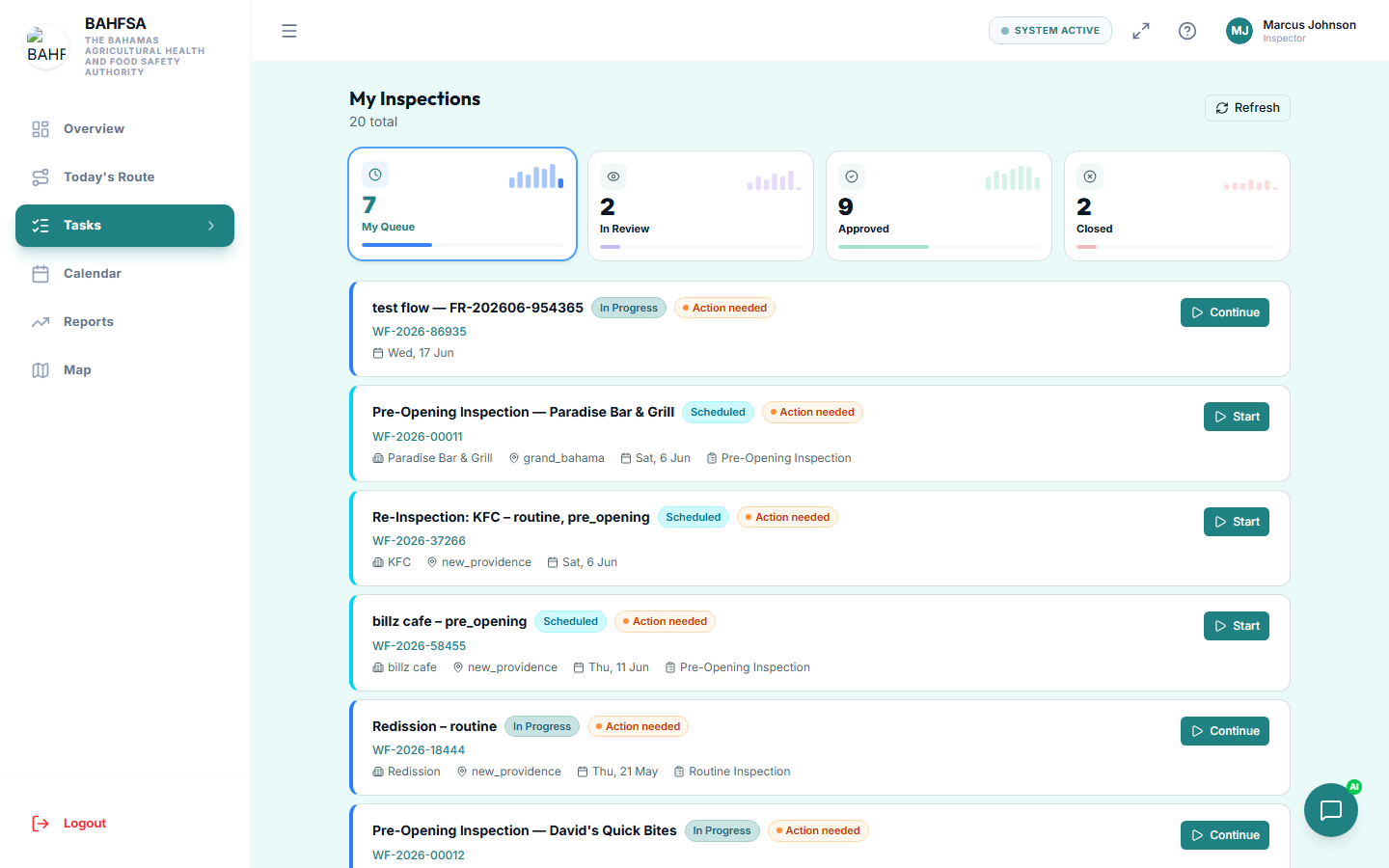 Your assigned inspections, with their site, type, schedule, and status.
Opening your tasks
In the menu, select Tasks. You'll see a list of inspections assigned to you, each showing:
- The business / site and its location
- The type of inspection
- The scheduled date and time slot
- Its current status (for example, scheduled, in progress, or submitted)
Sorting and finding work
Use the filters and search at the top to narrow the list — for example by date or status — so you can focus on what's next.
Opening an inspection
Select any task to open its full details. From there you can:
- Review the site and application information
- Start the inspection when you're on site
- Complete the checklist
- Add photos and documents
- Submit your findings
See Carrying Out an Inspection for the full process.
Calendar view
Prefer to see your work by date? Open the Calendar in the menu to view your scheduled inspections laid out by day.
tip
Tasks waiting on you are usually surfaced on your dashboard too — a quick way to see what needs doing today.