Signing In
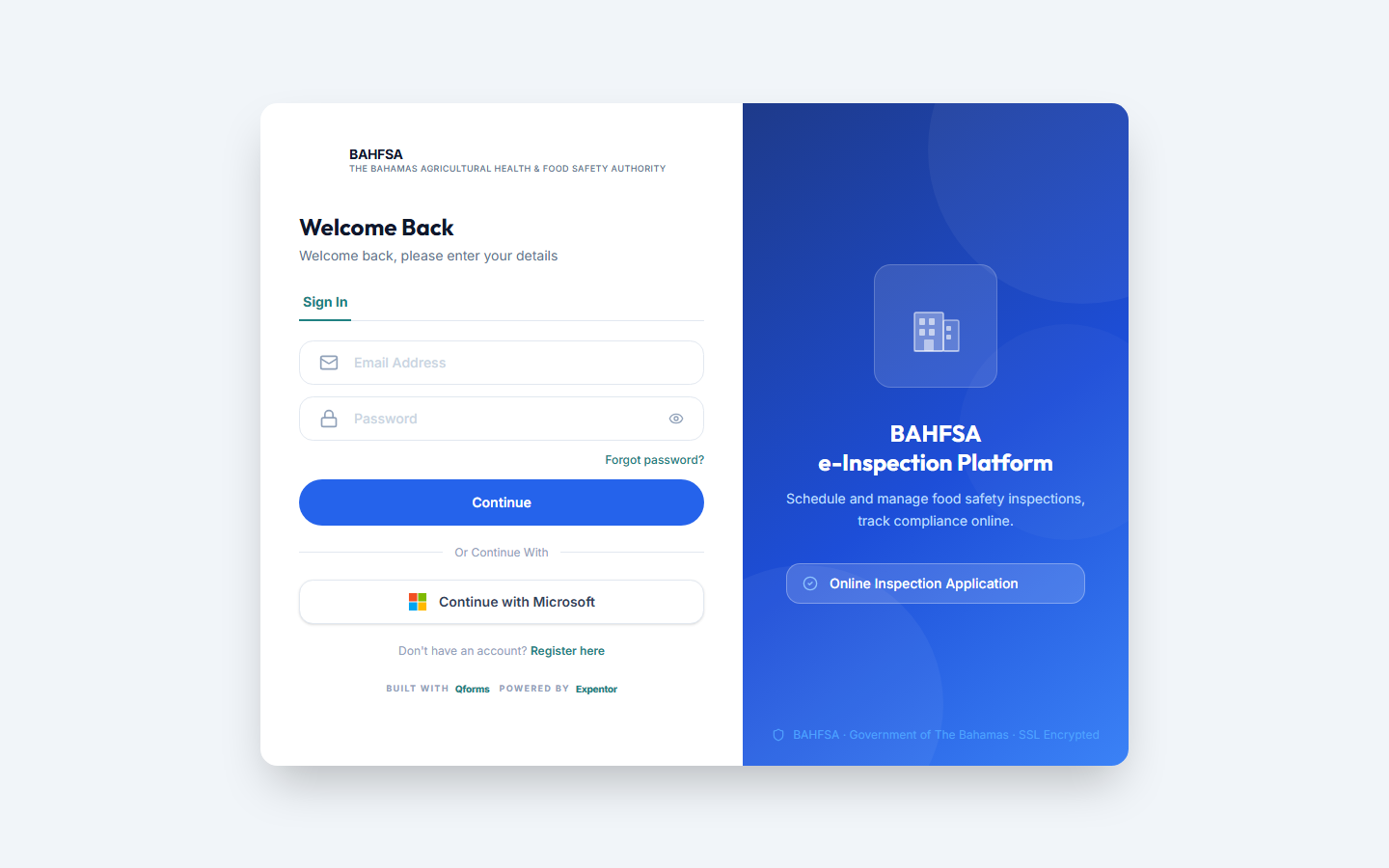 The sign-in screen — enter your email and password, or use "Continue with Microsoft".
Sign in with email and password
- Open the Portal and go to the Sign in screen.
- Enter your email address and password.
- Select Sign in.
You'll land on your home dashboard, which is tailored to your role.
Sign in with a Microsoft account
If your organisation uses Microsoft accounts, you may see a Sign in with Microsoft button. Select it and follow the Microsoft prompts — you'll be returned to the Portal automatically once you've signed in.
Forgot your password?
- On the sign-in screen, select Forgot password.
- Enter the email address you registered with.
- Follow the instructions sent to your email to set a new password.
note
If you don't receive the email within a few minutes, check your spam/junk folder and make sure you typed the right address.
Staying signed in
The Portal keeps you signed in on your device until you log out. On a shared or public computer, always log out when you're done:
- Open the menu (usually your name or avatar, top right).
- Select Log out.
Trouble signing in?
See Troubleshooting for common sign-in problems and how to fix them.