Finding Your Way Around
Once you sign in, the screen has a few main areas. They stay in the same place wherever you go, so you can always find your way back.
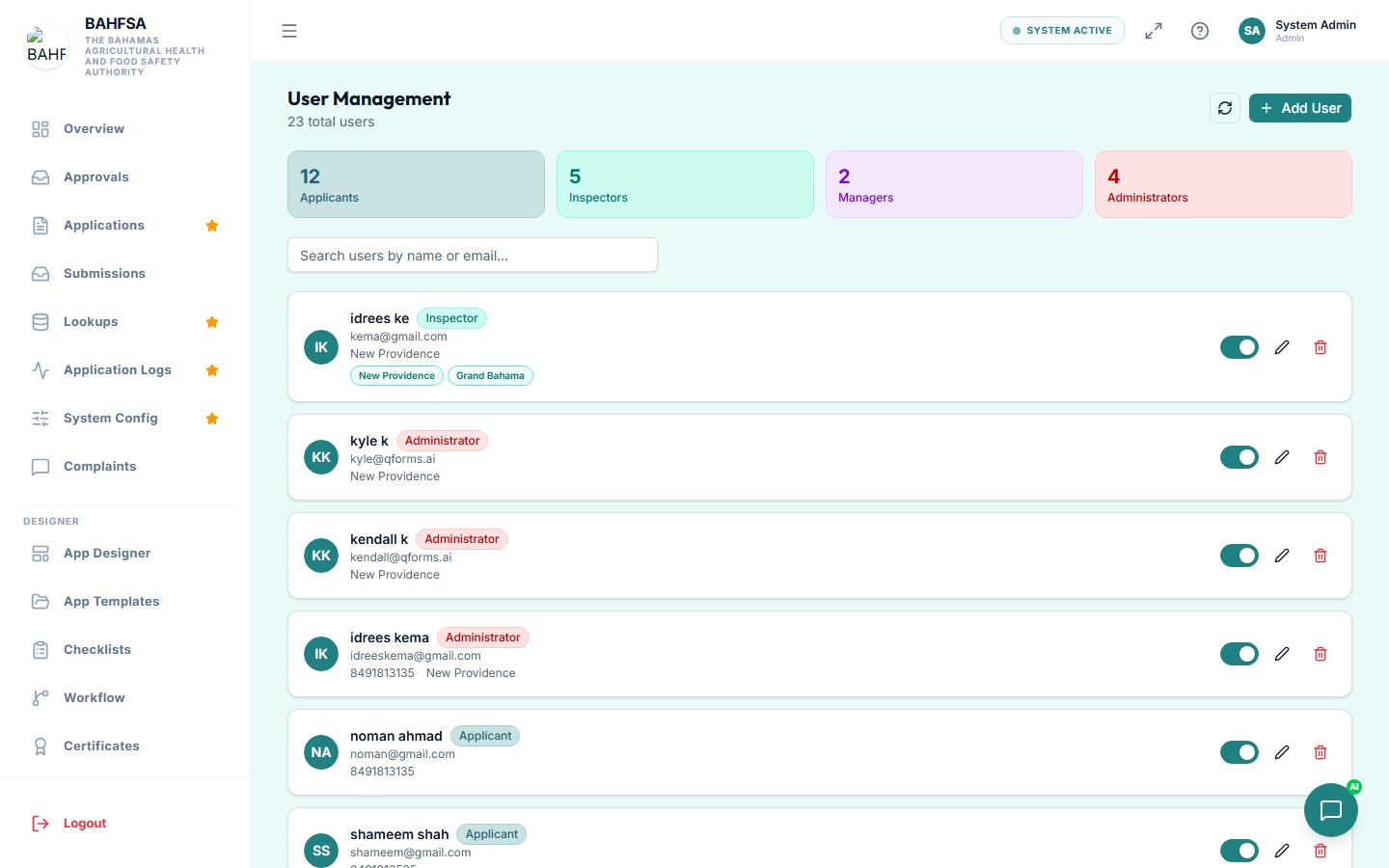 A typical signed-in screen: the menu runs down the left, the top bar sits across the top, and your current task fills the main area.
The main areas
| Area | Where | What it's for |
|---|---|---|
| Menu (sidebar) | Left side | Your main navigation. The options shown depend on your role. |
| Top bar (header) | Top | Search, notifications, and your account menu. |
| Main area | Centre | Whatever you're working on right now. |
| Dashboard | Your home page | A quick summary and shortcuts to common tasks. |
The menu
The menu on the left lists everything you can do. For example:
- Citizens see things like Online Services, My Submissions, and My Certificates.
- Inspectors see Tasks, Today's Route, and Calendar.
- Managers see Approvals, Inspections, and Reports.
- Administrators see everything, plus a Designer section for building forms and workflows.
You can collapse the menu to make more room — look for the collapse arrow.
Notifications
A bell icon in the top bar shows updates — like an approval, a new task, or a payment receipt. A dot or number means you have something new. Select it to read your notifications. See Notifications.
Your account menu
Select your name or avatar (top right) to:
- Open your profile and preferences
- Switch between light and dark appearance
- Log out
Getting help inside the Portal
Look for a Help option in the menu or a help button on the screen. You can also return to this guide any time.
:::tip Lost? Select the BAHFSA logo or Dashboard in the menu to return to your home page. :::