Certificates & Documents
When your application is approved, you receive an official certificate you can view, download, and print.
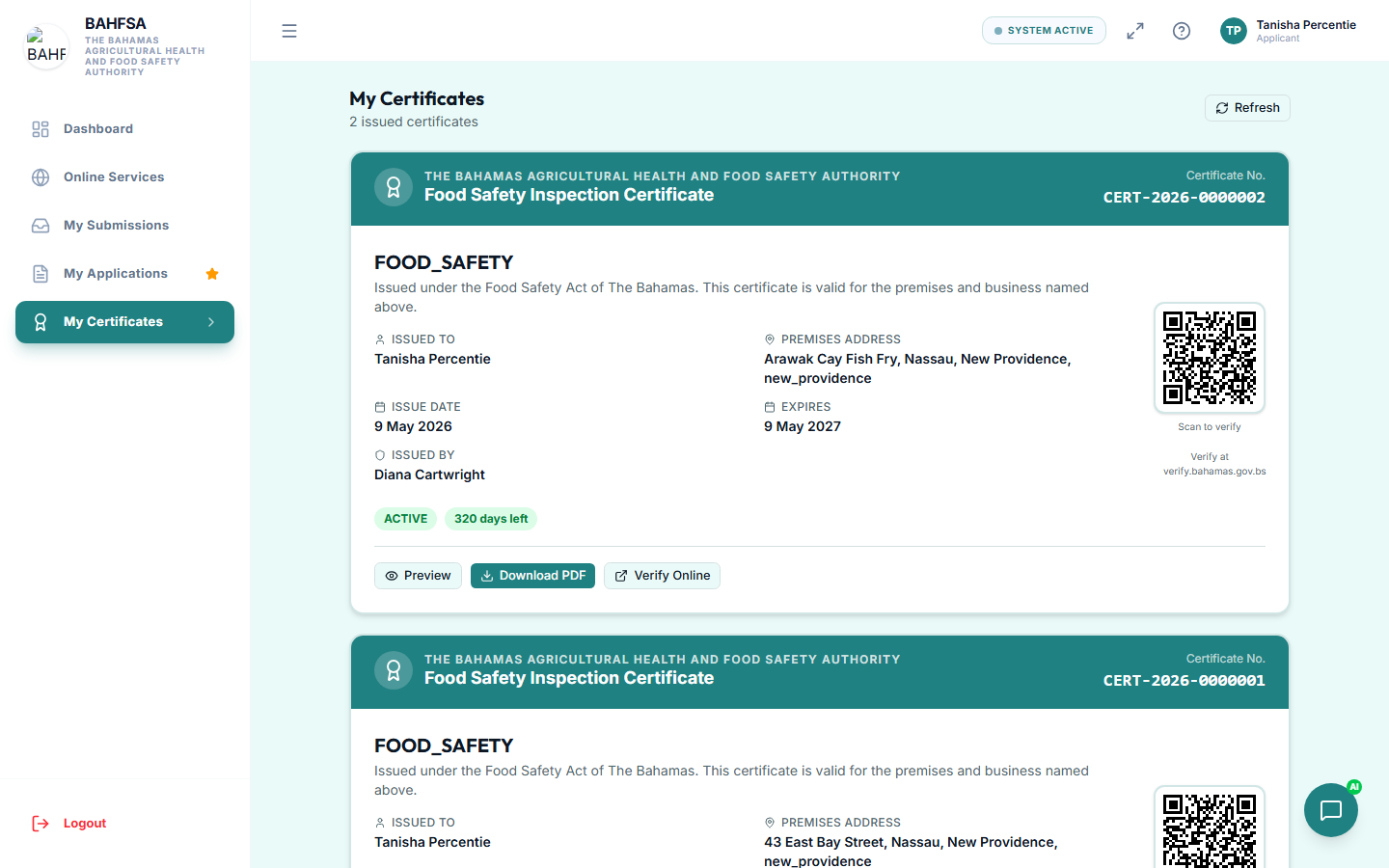 Your issued certificates — open one to download or print it.
Finding your certificates
- In the menu, select My Certificates.
- You'll see a list of certificates issued to you.
- Select one to open it.
Downloading and printing
- Open a certificate and choose Download to save it as a PDF.
- Open the PDF and print it like any other document.
Each certificate includes a certificate number and a QR code that anyone can scan to confirm it's genuine — see Verify a Certificate.
Expiry dates
Some certificates have an expiry date shown on them. Keep an eye on it — you may need to reapply or renew before it lapses to stay compliant.
Your documents
Files you uploaded during an application (such as IDs or licences) are kept with that application. You can find them under your application's details, or under Documents if shown in your menu.
Keep a copy
It's a good idea to download and save your certificate to your own device as well, so you always have it handy — even offline.