Managing Users
You create and manage the accounts for staff — inspectors, managers, and other administrators. (Members of the public register themselves.)
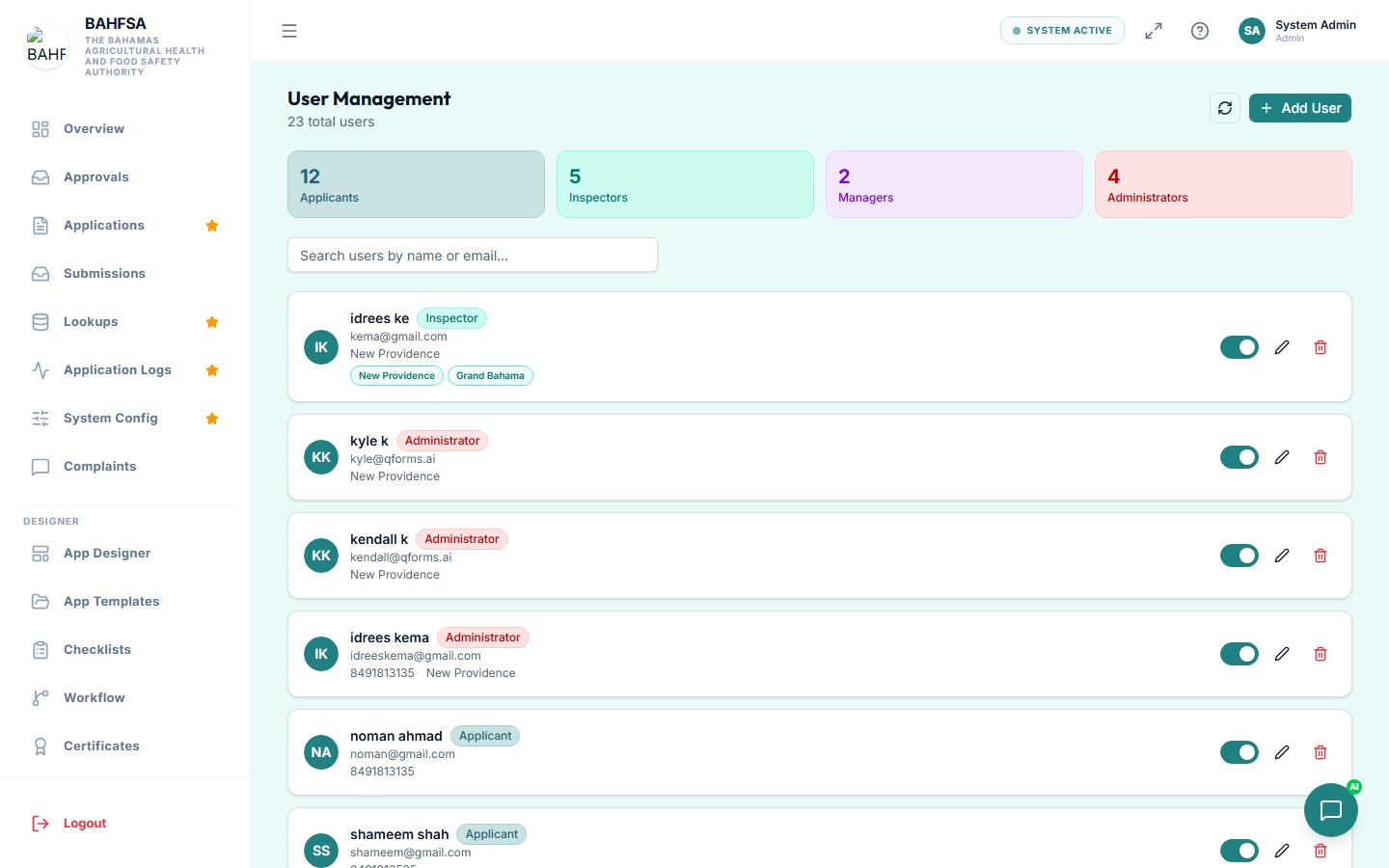 User Management — add users, set their role, and activate or deactivate accounts.
Find the users area
In the menu, go to Users (under administration or Settings → Users). You'll see a list of all accounts with their names, emails, roles, and whether they're active.
Create a user
- Select Add user (or Create).
- Enter their name and email.
- Choose a role (for example, Inspector or Manager) — this controls what they can do.
- Set any other details, such as the islands they cover.
- Save.
The new account can now sign in. Roles decide what each person sees and can do — see Roles & Permissions.
Edit a user
Select a user to update their details — change their role, update contact information, or adjust the islands they're assigned to.
Activate or deactivate
Instead of deleting an account, you can deactivate it. A deactivated user can't sign in, but their history is kept. Reactivate them at any time.
Removing a user
You can delete an account when appropriate. Deactivating is usually safer, as it preserves the record of what that person did.
:::tip Give people the right role A person's role determines their entire experience. If someone can't see something they need, check their role and permissions first. :::