Email Templates
The Portal can send emails automatically as applications move along — for example, a confirmation, an approval notice, or a certificate. You design these emails here, then attach them to steps in a workflow.
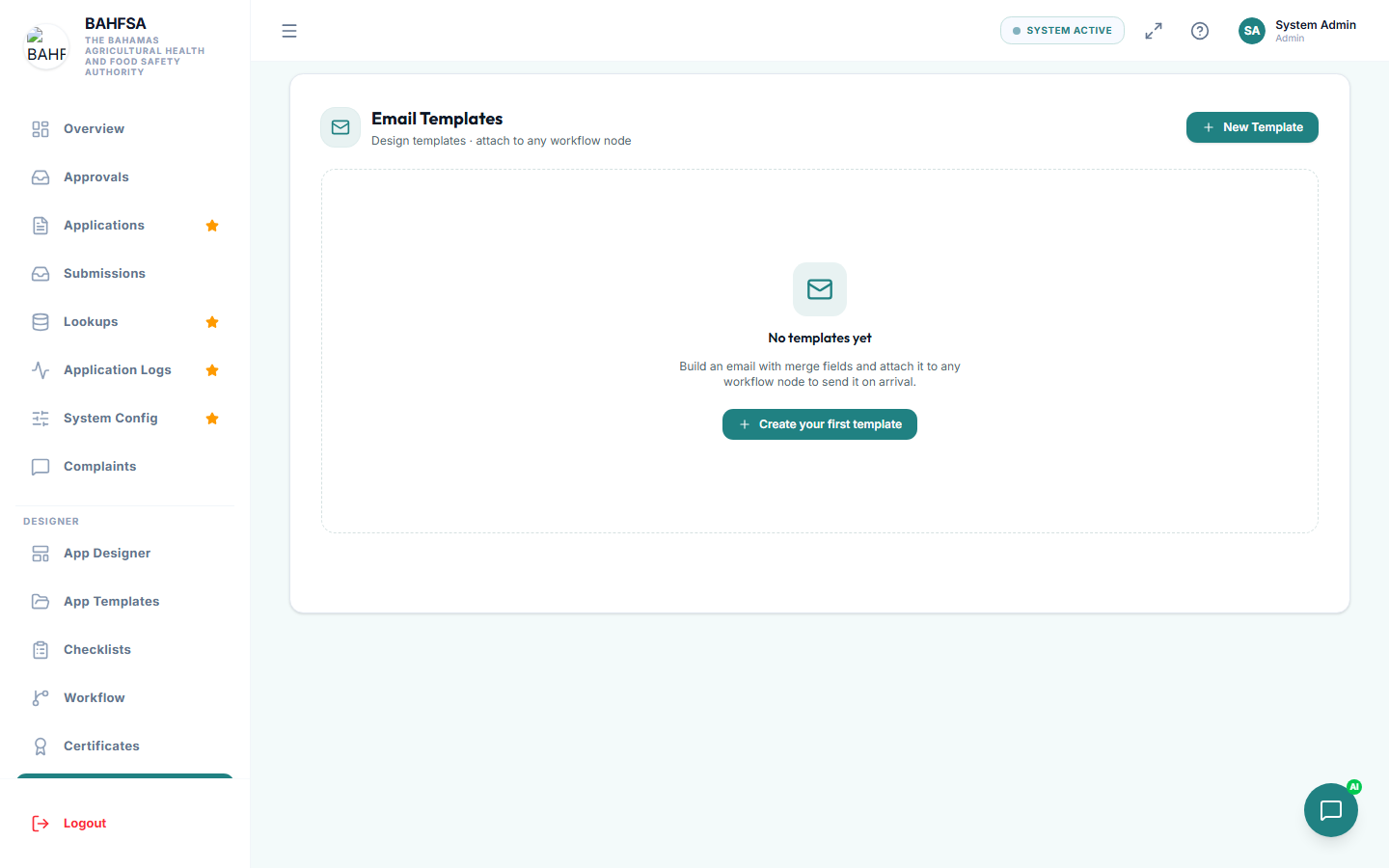 Design emails from simple blocks — no code needed.
Open the email designer
In the menu, open Designer → Email Templates. You'll see your saved email templates.
Design an email
Create a template and set:
- The subject line.
- A short preview text (the snippet shown in an inbox).
- A header title and header colour for a branded banner.
- The body, built from blocks of text and automatic fields (merge fields) — just like certificates. Fields fill in real details such as the applicant's name or reference number.
There's no need to write any code or HTML — you build the email from simple blocks.
Preview
Use the preview to see the finished email with example details before you use it.
Attach an email to a workflow step
Emails are sent from within a workflow. On any step, open the Send email panel and choose:
- The template to send.
- Who receives it — the applicant, the assigned inspector, everyone in a role, or a fixed address.
- Whether to attach the certificate (handy on the final step).
When an application reaches that step, the email goes out automatically and the application carries on as normal.
Keeping track of emails
Every email the Portal sends is logged, so there's a record of what was sent and whether it succeeded.
:::warning Email delivery must be set up Sending real emails requires the system's email settings to be configured by whoever runs the Portal. If emails aren't arriving, that setup may be missing — the templates and logs still work regardless. Ask your technical contact to confirm email delivery is configured. :::