Checklists
Checklists are what inspectors fill in on site. You design them once, and they're used for every matching inspection.
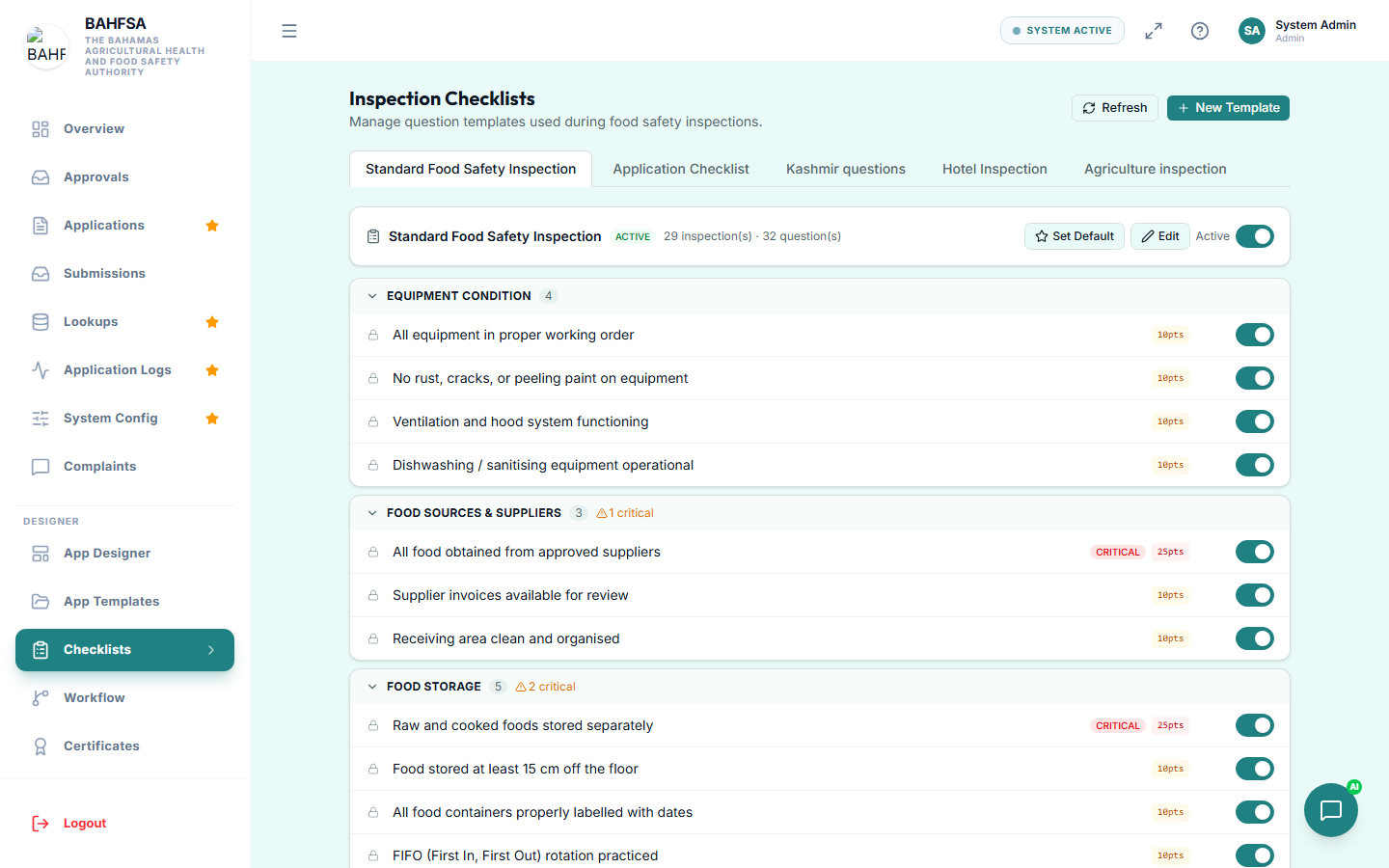 Build checklist items, group them into categories, and set scoring.
Open the checklist designer
In the menu, open Designer → Checklists (or Checklists under administration). You'll see your checklist templates.
Create a checklist
- Add a checklist and give it a name.
- Add items — the things to check.
- Group items into categories (for example, Hygiene, Storage, Documentation) to keep them organised.
Choosing item types
Each item can be one of:
| Type | Use it for |
|---|---|
| Pass / Fail | A straightforward meets-the-standard check. |
| Single choice | Pick one option from a list, each worth points. |
| Points (rubric) | Score against graded options. |
| Text | A written note with no score. |
Scoring and critical items
- Give items a weight so more important checks count for more.
- Mark an item as critical if failing it should fail the whole inspection on its own (used for serious hazards).
The Portal uses these settings to calculate each inspection's score and grade automatically.
Let AI suggest questions
Short on ideas? Use AI suggestions — describe a category or topic and the Portal proposes checklist questions you can add and edit.
Using a checklist in a workflow
Attach a checklist to a step in your workflow so it's automatically presented to the inspector at the right moment.
:::tip Keep checklists focused Group related items and keep wording clear and specific — inspectors complete these in the field, sometimes quickly, so clarity helps accuracy. :::