Certificate Templates
When an application is approved, the Portal issues an official certificate. You design how that certificate looks.
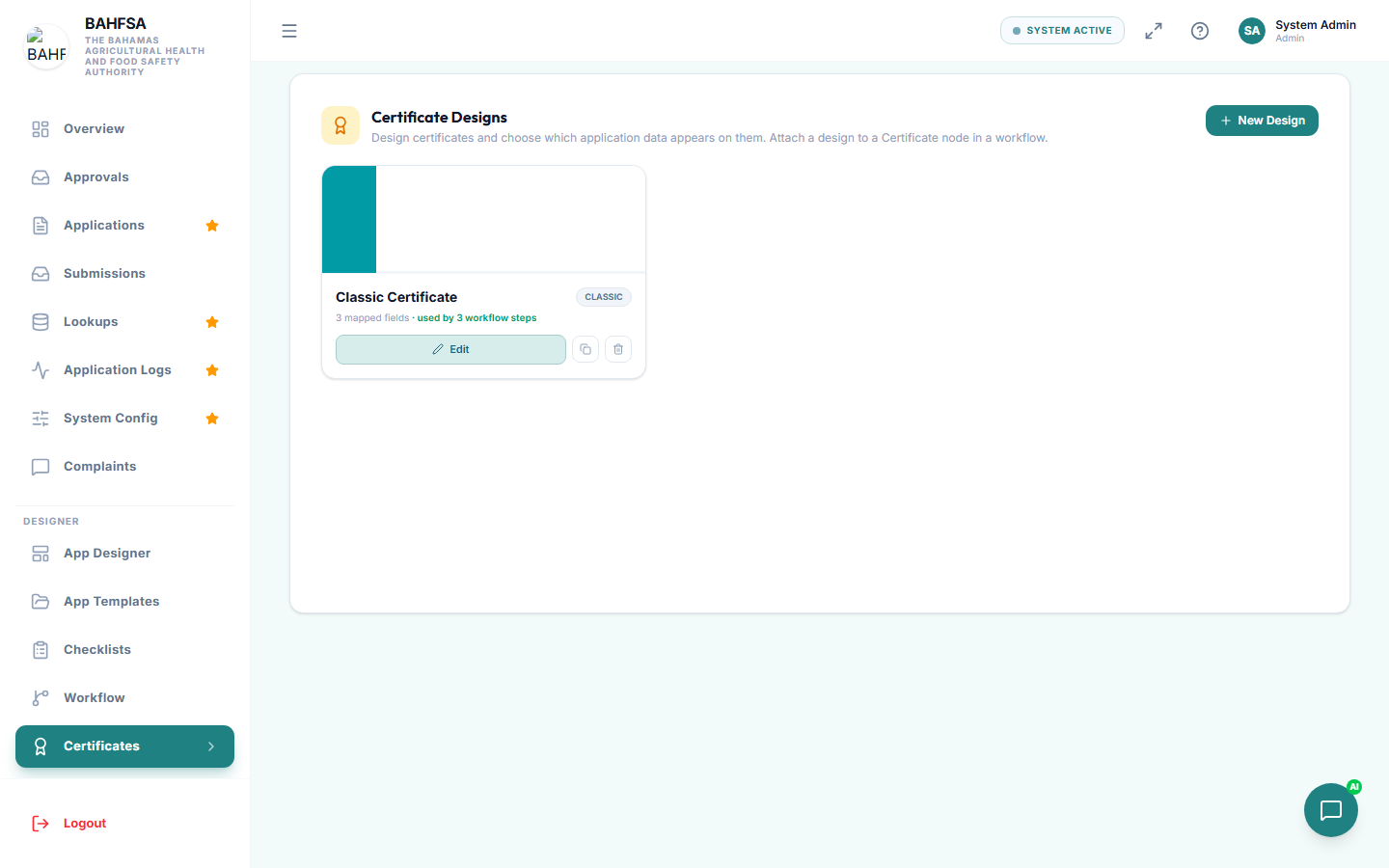 Design certificate layouts — styles, colours, content, and a verification QR code.
Open the certificate designer
In the menu, open Designer → Certificates. You'll see your certificate templates.
Design a certificate
Create a template and set:
- A design style (for example, classic, gold, modern, or minimal).
- Colours — a main colour and an accent.
- The title and subtitle wording.
- A signature line and title.
- A footer note.
- Whether to show a QR code, a watermark, and a signature.
Add content with merge fields
The body of the certificate is built from blocks. A block can be:
- Text you type, or
- A field that fills in automatically — like the applicant's name, the business name, dates, or the certificate number.
These automatic fields are called merge fields. You pick them from a list, and the real details are filled in when the certificate is issued. This means every certificate is personalised without you typing anything per applicant.
Preview
Use the preview to see a sample certificate with example details, so you know exactly how it'll look before using it.
Use it in a workflow
To have a certificate issued automatically, add a Certificate step to your workflow and choose this template. When an application reaches that point after approval, the certificate is generated — complete with a QR code citizens and third parties can scan to verify it.
Expiry dates
Certificates can carry an expiry date. There are tools to set or recalculate expiry dates across existing certificates when policies change.